How to Setup n8n Webhook Node (GET vs POST Guide)
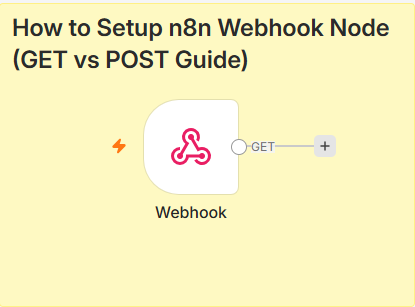
How to Setup n8n Webhook Node (GET vs POST Guide)
Webhooks are how external apps talk to your n8n workflows. Get this n8n webhook setup wrong, and nothing works. Get it right, and you can automate almost anything.
I've set up webhooks for Stripe, HubSpot, Shopify, and Slack integrations. Here's the exact process, plus the errors that tripped me up.
What is an n8n Webhook Node?
A webhook is a URL. When an external service sends data to that URL, your n8n workflow starts running.
Two types matter for n8n webhook setup:
- GET — for verification (like Meta's WhatsApp API)
- POST — for receiving actual data
Most integrations use both HTTP methods. You need to handle each correctly.
Prerequisites
Before you start, make sure you have:
- Active n8n instance (self-hosted or cloud)
- HTTPS URL (required for most APIs)
- Basic understanding of HTTP request methods
- Access to the external service's dashboard
If you're on self-hosted n8n, your webhook URL looks like this: https://your-domain.com/webhook/whatsapp-webhook
If you're on n8n cloud, it looks like this: https://your-instance.app.n8n.cloud/webhook/whatsapp-webhook
Step 1: Create the Webhook Node
Open n8n. Click + Add Node. Search for Webhook. Drag it onto the canvas.
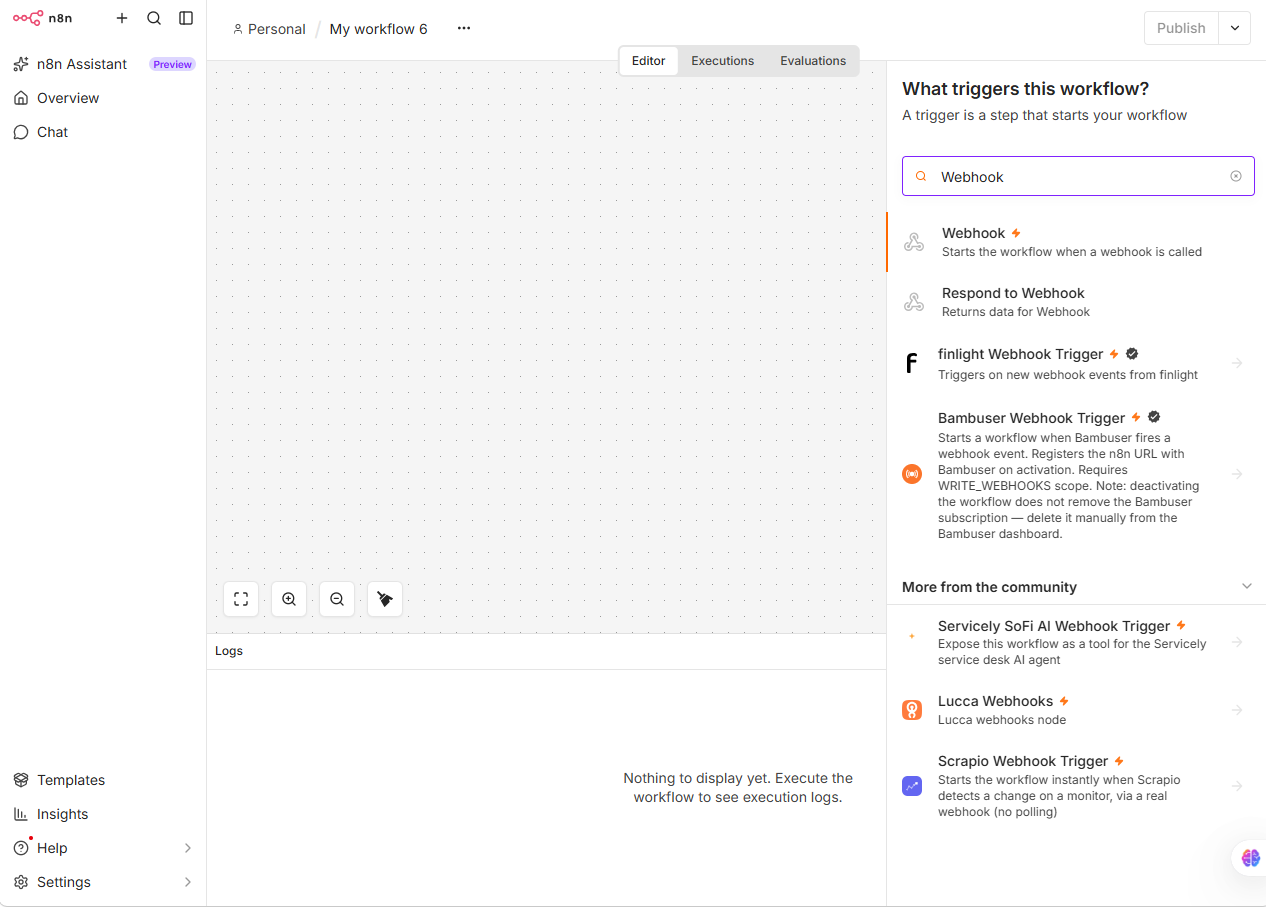
You'll see these fields:
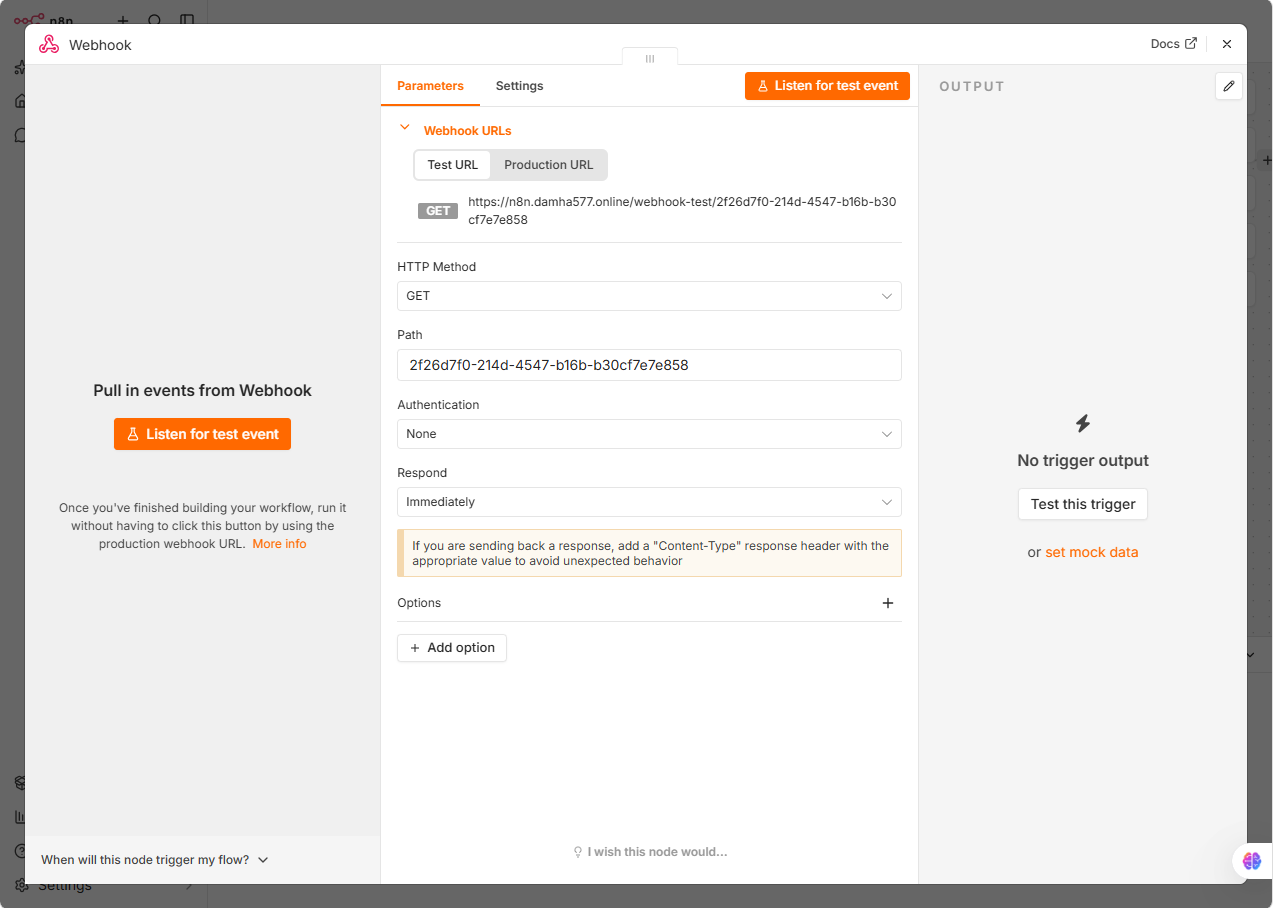
- HTTP Method: GET, POST, PUT, DELETE
- Path: Custom URL endpoint
- Authentication: None, Basic Auth, Header Auth
- Response Mode: When Last Node Finishes, Immediately, Using Respond to Webhook Node
Start with GET method for verification. We'll add POST after.
Step 2: Configure GET (Verification)
Meta, Slack, and other platforms verify your webhook by sending a GET request with a challenge token.
Set up like this:
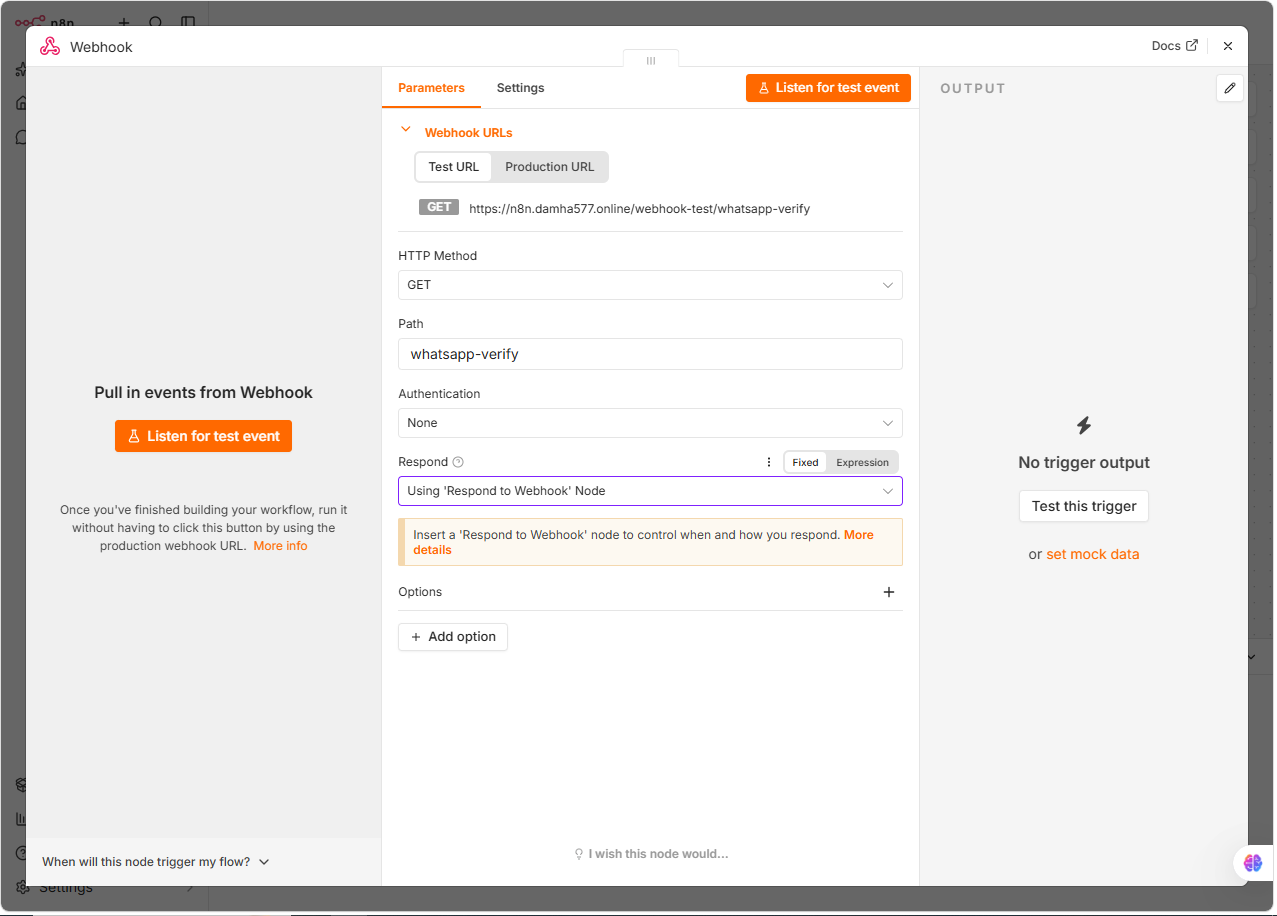
- HTTP Method: GET
- Path: whatsapp-verify
- Response Mode: Using Respond to Webhook Node
Then add a Set Node to extract the challenge using this expression: {{ $json.query["hub.challenge"] }}
Add an IF Node to verify the token matches what you set in the platform using this expression: {{ $json.query["hub.verify_token"] }} === "your-secret-token"
If it matches, return the challenge as 200 OK with the challenge value. If it doesn't match, return 403 Forbidden.
Save the workflow. Copy the webhook URL. Paste it into the external service's dashboard.
Step 3: Configure POST (Data Receipt)
Now switch to POST for actual data.
- HTTP Method: POST
- Path: whatsapp-webhook (different from verification)
- Response Mode: Immediately (return 200 fast)
The data comes in the body. Extract it with a Code Node. Here is the JavaScript code you need to paste into the Code Node:
const items = $input.all(); for (const item of items) { const message = item.json.body.entry[0].changes[0].value.messages[0]; item.json.sender_phone = message.from; item.json.user_message = message.text.body; } return items;
Now you have clean data to pass to your next nodes.
Step 4: Handle Authentication
Most APIs require an auth header for n8n webhook authentication. Add it in the Webhook Node:
- Open the node
- Click Authentication
- Select Header Auth
- Add Authorization: Bearer YOUR_TOKEN
Real example: Last month, I set up a Shopify webhook. Forgot the header auth. Shopify sent data. My workflow crashed. Took 30 minutes to find the issue. Always check auth first.
Common n8n Webhook Errors (And How to Fix Them)
Error 1: 404 Not Found
What it looks like: 404 Not Found
Why: The external service is hitting the wrong URL.
Fix: Copy the webhook URL from n8n. Paste it exactly into the external service. Check for trailing slashes.
Error 2: 401 Unauthorized
What it looks like: 401 Unauthorized
Why: Auth header missing or wrong.
Fix: Regenerate the token in the external service. Update it in n8n. Save and test.
Error 3: 504 Gateway Timeout
What it looks like: 504 Gateway Timeout
Why: Your workflow takes too long. The external service gave up waiting.
Fix: Change Response Mode to "Immediately". Process data asynchronously.
Error 4: No Data Received
What it looks like: Workflow runs but no data
Why: The webhook URL is correct, but the body structure changed.
Fix: Use n8n's execution log. Check the raw body. Update your Code Node path.
GET vs POST — When to Use Which
Use GET for:
- Webhook verification
- Simple query parameters
- Public endpoints
Use POST for:
- Sending data
- Large payloads
- Sensitive information
- Most real-world integrations
Most APIs use both. GET verifies. POST delivers.
Testing Your Webhook
Three ways to test:
- n8n manual test: Click "Test Workflow" in n8n
- Curl command: curl -X POST https://your-domain.com/webhook/test -H "Content-Type: application/json" -d '{"test": "data"}'
- External service test: Most APIs have a "Test Webhook" button in their dashboard.
Always test before going live. Broken webhooks are silent failures.
Securing Your Webhook
A public webhook URL is a security risk. Anyone can send data. Protect it with:
- Header auth — Require a secret token
- IP allowlist — Only accept from specific IPs
- Rate limiting — Prevent abuse
- Data validation — Check the payload structure before processing
For production workflows, always use at least two of these.
When to Use Webhooks vs Polling
Webhooks = push (external service tells you) Polling = pull (you check every X minutes)
Use webhooks when:
- Real-time data matters
- External service supports it
- You want to save API calls
Use polling when:
- Webhooks aren't available
- Data changes slowly
- You need batch processing
Webhooks are almost always better. Less server load. Faster response.
Official Documentation
For more details on n8n webhook nodes, check these official resources:
- n8n Webhook Node Documentation: https://docs.n8n.io/integrations/builtin/core-nodes/n8n-nodes-base.webhook/
- n8n Community Forum: https://community.n8n.io/
- GitHub Issues: https://github.com/n8n-io/n8n/issues
Need Help With Your n8n Webhook Setup?
We build production-grade n8n workflows for businesses. If you're stuck on webhook configuration, or need a custom integration built, get in touch.
Get a free consultation at /contact/
Frequently Asked Questions
Why is my n8n webhook returning 404?
The external service is hitting the wrong URL. Copy the webhook URL directly from n8n and paste it into the service. Check for trailing slashes or typos.
What is the difference between GET and POST webhooks?
GET is used for verification, like Meta's WhatsApp API challenge. POST is for receiving actual data. Most APIs use both — GET to verify, POST to send.
How do I secure my n8n webhook?
Use header authentication with a secret token. Add an IP allowlist if possible. Enable rate limiting. Validate the incoming payload structure before processing.
Why does my n8n webhook return 401 Unauthorized?
The auth header is missing or wrong. Regenerate the token in the external service, update it in n8n credentials, save the workflow, and test again.
Can I use a webhook without HTTPS?
No. Most external services require HTTPS for webhooks. HTTP webhooks are blocked by Meta, Stripe, Slack, and Shopify. Use a self-signed certificate or a reverse proxy like Nginx with Let's Encrypt.
Need custom automation?
Tell us about your process and we'll build the workflow for you.
Contact us